Migrating from Sage Intacct to QuickBooks Online can be a practical choice when your business wants a simpler accounting system, easier day-to-day access, and a broader range of connected business applications. However, moving from one accounting platform to another is more than just exporting data and uploading a few files. Your chart of accounts, customers, vendors, open transactions, reporting dimensions, historical records, integrations, and user permissions all need to be reviewed before the switch.
In this guide, we explain how to migrate from Sage Intacct to QuickBooks Online step by step. You’ll learn what to prepare before migration, which data can be transferred, how to map Sage Intacct information to QuickBooks Online, how to handle data that does not have a direct equivalent, and how to verify your accounts after the migration. We’ll also cover common conversion challenges, historical data, multi-entity accounting, integrations, and important steps to take before going live.
Why Do Businesses Move from Sage Intacct to QuickBooks Online?
Sage Intacct is designed for businesses with more advanced accounting and financial management requirements. QuickBooks Online, on the other hand, provides a more straightforward cloud accounting environment that can be suitable for small and mid-sized organizations.
Businesses may consider moving to QuickBooks Online for several reasons:
- A simpler and more familiar accounting interface.
- Easier access to financial information from computers and supported mobile devices.
- Subscription options that may better fit the organization’s current requirements.
- A large ecosystem of third-party applications for payroll, payments, CRM, inventory, time tracking, and other business functions.
- Automated features for invoicing, bank feeds, recurring transactions, and financial reporting.
- Easier collaboration between business owners, accountants, and other authorized users.
- QuickBooks Online Advanced options for businesses that need more advanced user controls, reporting, and accounting capabilities.
Before making the switch, however, businesses should compare the features they currently depend on in Sage Intacct with the capabilities available in their selected QuickBooks Online plan. Some Sage Intacct features and structures do not have a one-to-one replacement in QuickBooks Online.
Pre-Migration Checklist: Preparing for a Smooth Transition
Good preparation is one of the most important parts of a successful Sage Intacct to QuickBooks Online migration. Before moving any information, review your existing accounting environment and decide exactly what needs to be transferred, recreated, or retained for reference.
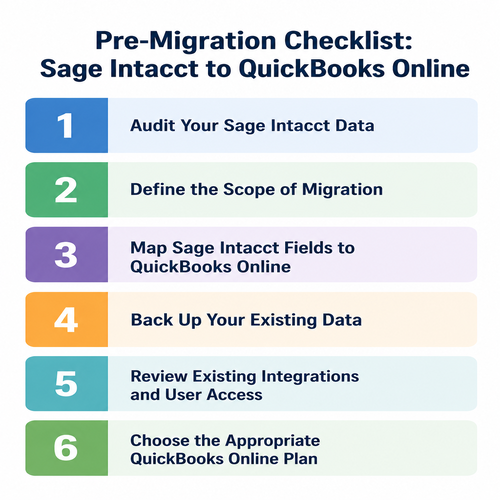
1. Audit Your Sage Intacct Data
Start by reviewing the information currently stored in Sage Intacct. This helps identify duplicate, outdated, incomplete, or inconsistent records before they reach QuickBooks Online.
Review items such as:
- Customer and vendor records
- Chart of accounts
- Open invoices and bills
- Credit memos and other open items
- Journal entries
- Bank and credit-card information
- Products and services
- Employee-related records
- Projects
- Departments and other dimensions
- Historical financial reports
- Attachments and supporting documents
It is also useful to identify inactive accounts and duplicate names before exporting the data. Cleaning the source data first can make field mapping and validation much easier later.
2. Define the Scope of Migration
Not every business needs to move every piece of historical information into QuickBooks Online. Decide what you actually need before beginning the conversion.
Your migration plan should identify:
- How many years of history need to be available in QBO
- Which master lists need to be transferred
- Which open invoices and bills must remain active
- Whether historical transactions will be imported in detail or represented through opening balances
- Which attachments and documents need to be retained
- Whether budgets need to be recreated
- How projects and reporting dimensions will be handled
- Which information will remain in Sage Intacct for historical reference
- The planned cutover date
Establishing a clear cutover date is especially important. It gives your team a specific point at which Sage Intacct activity ends and QuickBooks Online becomes the active accounting system.
3. Map Sage Intacct Fields to QuickBooks Online
Sage Intacct and QuickBooks Online organize accounting information differently, so field mapping should be completed before importing transactions.
Common mapping areas include:
- General ledger accounts → QuickBooks Online chart of accounts
- Customers → Customers
- Vendors → Vendors
- Products and services → Products and Services
- Departments or dimensions → Classes, Locations, custom fields, or another reporting method
- Projects → Projects or customer/sub-customer structures where appropriate
- Tax information → Applicable QBO tax setup
- Employee information → Appropriate employee records or payroll setup
Do not assume that every Sage Intacct dimension can simply be converted into a QuickBooks Online class. Review how each dimension is currently used and determine which QBO feature best represents it.
A proper mapping document should be created before the first import. This provides a reference for correcting errors and maintaining consistent reporting after the migration.
4. Back Up Your Existing Data
Keep a complete record of your Sage Intacct environment before making the transition.
Depending on your business requirements, retain copies of:
- Trial balances
- Balance sheets
- Profit and loss statements
- General ledger reports
- Accounts receivable and accounts payable aging reports
- Bank reconciliation information
- Transaction reports
- Customer and vendor lists
- Chart of accounts
- Tax reports
- Audit-related records
- Important attachments and supporting documents
The purpose is not simply to have a backup file. These reports also provide a baseline that you can compare against QuickBooks Online after the migration.
5. Review Existing Integrations and User Access
Before moving to QBO, make a list of the applications and services currently connected to Sage Intacct.
Review integrations involving:
- Payroll
- Payment processing
- CRM
- Inventory
- Expense management
- Time tracking
- Banking
- E-commerce
- Reporting applications
For every integration, determine whether an equivalent QuickBooks Online integration is available and whether historical information needs to be preserved separately.
You should also review your current Sage Intacct user roles and decide how access will be handled in QuickBooks Online. This prevents users from receiving too much or too little access after the migration.
6. Choose the Appropriate QuickBooks Online Plan
Select the QuickBooks Online subscription based on your business requirements before finalizing the migration design.
Consider requirements such as:
- Number and type of users
- Advanced reporting
- Class and location tracking
- Custom fields
- Inventory
- Project accounting
- Multicurrency
- User permissions
- Approval workflows
For businesses with more complex accounting requirements, QuickBooks Online Advanced may be worth evaluating before the migration begins.
How to Migrate from Sage Intacct to QuickBooks Online: Step-By-Step
Once the preparation is complete, the actual migration can begin. The exact process may vary depending on how much historical data you need and which Sage Intacct features your business uses.
Step 1: Export Data from Sage Intacct
Start by exporting the information required for your migration.
Depending on your migration scope, this may include:
- Chart of accounts
- Customer records
- Vendor records
- Products and services
- Employees
- Open accounts receivable
- Open accounts payable
- Journal entries
- Banking information
- Projects
- Dimensions and reporting information
- Historical transactions
- Financial reports
Export the information using the formats available to you, such as CSV or Excel, and retain the original exported files for reference.
Do not immediately import everything into QBO. The exported files should first be reviewed, cleaned, and mapped.
Step 2: Format and Clean Your Exported Data
Exported Sage Intacct data may not be ready for direct import into QuickBooks Online. Even when the information itself is correct, the columns, account types, naming conventions, and other fields may not match what QBO expects.
Before importing, review the files for:
- Duplicate customers and vendors
- Duplicate account names
- Missing information
- Invalid account types
- Inconsistent naming
- Incorrect dates
- Incorrect transaction values
- Unsupported fields
- Inconsistent tax information
- Unnecessary inactive records
Standardize the information before importing it. This is also the stage where you should resolve differences between Sage Intacct dimensions and the reporting structure you plan to use in QBO.
QuickBooks Online currently supports several spreadsheet formats for imports, including CSV, Excel, and XLSX files, although the requirements vary depending on the type of information being imported. Intuit also provides sample files that can be used to format the data correctly before uploading it.
Step 3: Set Up Your QuickBooks Online Account
Configure QuickBooks Online before bringing over your accounting data.
Set up the required:
- Company information
- Fiscal and accounting settings
- Chart of accounts
- Tax settings
- Classes and locations
- Products and services
- User permissions
- Customer and vendor settings
- Multicurrency, if applicable
- Inventory settings, if applicable
Avoid changing important accounting settings repeatedly after transactions have already been imported. Establishing the basic structure first makes the migration easier to control.
Your chart of accounts deserves particular attention because it determines how many transactions will ultimately appear in your financial reports. QuickBooks Online allows chart-of-accounts information to be imported from spreadsheets, and the account name, type, detail type, and optional account number need to be mapped correctly during the import.
Step 4: Import Master Data into QuickBooks Online
Import foundational records before importing dependent transactions.
A practical order is:
- Chart of accounts
- Customers and vendors
- Products and services
- Other required master records
- Transactions such as invoices and bills
This order is important because transactions often depend on the lists and accounts being available first. Current QuickBooks Online guidance recommends importing the chart of accounts before customers, vendors, employees, classes, locations, and products/services, followed by the applicable transaction data.
After each major import, review the records before moving to the next stage. Catching an incorrect customer name or account mapping early is much easier than correcting thousands of transactions later.
Step 5: Import Open Transactions
Next, transfer the transactions that still require action in the new accounting system.
These may include:
- Unpaid customer invoices
- Unpaid vendor bills
- Credit transactions
- Outstanding checks
- Deposits
- Other open receivables and payables
Pay particular attention to transaction dates, customer and vendor names, account assignments, tax treatment, and outstanding balances.
The goal is to make sure your open AR and AP position in QuickBooks Online agrees with the final position in Sage Intacct at the migration cutoff.
QuickBooks Online currently provides import options for several transaction types, including invoices, bills, checks, deposits, expenses, journal entries, sales receipts, and other supported data. The exact options and limits can depend on the QBO plan and the type of import being used.
Step 6: Handle Historical Transactions and Opening Balances
Historical information requires careful planning.
Some businesses need several years of detailed transactions inside QBO, while others only need current open transactions and accurate opening balances, with older records retained separately.
Before choosing an approach, consider:
- Tax and compliance requirements
- Management reporting requirements
- Audit requirements
- Transaction volume
- Required historical detail
- Available import methods
- Storage and access requirements
If detailed historical transactions cannot be transferred in the same structure, preserve the original Sage Intacct reports and supporting records. Do not assume that every historical feature will have an identical representation in QBO.
Opening balances also deserve careful attention. After the chart of accounts has been established, the balances that form the starting point for the new QBO company need to agree with the final Sage Intacct balances at the chosen cutoff date. Current QuickBooks guidance specifically emphasizes establishing opening balances after account setup rather than assuming that importing the chart of accounts itself will bring those balances across.
Step 7: Reconcile and Validate the Migration
Never consider the migration complete immediately after the final import.
Compare QuickBooks Online with your Sage Intacct records, including:
- Trial balance
- Balance sheet
- Profit and loss statement
- Accounts receivable aging
- Accounts payable aging
- Bank balances
- Credit-card balances
- Open invoices
- Open bills
- Customer and vendor totals
- Inventory quantities and values, if applicable
- Key management reports
The reconciliation stage is where you confirm that the migration actually produced the expected accounting results. If your Sage Intacct trial balance shows a particular total at the cutoff date, the corresponding QBO balance should be investigated if it differs.
Once the results are confirmed, document the final migration date and retain the Sage Intacct reports used for comparison.
Key Tips to Ensure a Successful Migration
1. Maintain Consistency in Your Chart of Accounts
Avoid creating unnecessary accounts simply because similar categories existed in Sage Intacct. Review your existing chart of accounts and determine which accounts are still needed in QuickBooks Online.
A cleaner structure can make reporting and account reconciliation easier after the migration. It can also prevent your new QBO company from becoming cluttered with accounts that are no longer useful.
2. Test the Migration Before the Final Cutover
If the migration involves a large amount of information or complex accounting structures, perform a test migration first.
A test allows you to identify:
- Mapping errors
- Duplicate records
- Unsupported fields
- Incorrect opening balances
- Reporting differences
- Transaction import problems
This step is especially valuable when you are moving years of history or using several different Sage Intacct dimensions. A small test can reveal a mapping problem before the same mistake is repeated across a much larger data set.
Resolve these issues before performing the final migration.
3. Use QuickBooks Online Automation After Migration
Once the accounting data is stable, configure QBO automation where it makes sense.
Examples include:
- Recurring invoices
- Recurring transactions
- Bank feed rules
- Automated reminders
- Bill and invoice workflows
- Payroll integrations
- Connected payment applications
Automation should be configured after the underlying accounts and workflows have been validated. Otherwise, an incorrectly configured rule could create additional transactions or categorize activity incorrectly while you are still trying to verify the migrated data.
4. Use Third-Party Migration Tools When Appropriate
A third-party migration solution or experienced migration specialist may be useful when the business has:
- Large transaction volumes
- Complex historical data
- Multiple entities
- Extensive dimensional reporting
- Complicated inventory requirements
- Numerous integrations
- Data that requires substantial transformation
The right tool depends on the specific data being moved. A migration solution should be evaluated based on the types of Sage Intacct data it can actually extract, transform, and import into your QBO environment.
Third-party tools can be especially useful when standard spreadsheet imports would require a large amount of manual restructuring. However, using a tool does not remove the need for reconciliation. The imported information should still be compared with the original Sage Intacct records.
5. Train Your Team on QuickBooks Online
Users familiar with Sage Intacct may need time to adjust to the way QuickBooks Online organizes accounting information.
Training should cover:
- Dashboard navigation
- Customer and vendor management
- Invoices and bills
- Bank feeds
- Reconciliations
- Classes and locations
- Reports
- User permissions
- Recurring transactions
- New integrations
Training shortly before or after the cutover can help prevent avoidable data-entry and reporting mistakes. Even if the accounting concepts remain the same, users may need to learn where particular functions are located and how QBO handles tasks that were previously performed differently in Sage Intacct.
Overcoming Sage Intacct to QuickBooks Online Conversion Challenges
Moving between two accounting platforms can create challenges because their data structures and features are not identical. Understanding these differences before migration can prevent many problems.
1. Chart of Accounts and Dimensional Differences
Sage Intacct uses dimensions and other structures that may not have direct equivalents in QuickBooks Online.
To address this:
- Review how each Sage Intacct dimension is actually used.
- Map appropriate dimensions to QBO classes or locations where suitable.
- Use custom fields or another reporting approach when appropriate.
- Redesign the chart of accounts when necessary.
- Avoid forcing information into a QBO field simply because it has a similar name.
The goal is to preserve the reporting information that matters without creating a confusing accounting structure.
For example, if a Sage Intacct dimension is used primarily to compare performance between departments, a class-based structure may make sense. If another dimension represents physical branches, locations may be more appropriate. The correct mapping depends on the purpose of the information rather than simply matching field names.
2. Multi-Entity and Intercompany Accounting
Sage Intacct is commonly used for more complex multi-entity accounting environments. QuickBooks Online does not reproduce every Sage Intacct multi-entity and intercompany workflow in the same way.
Before migrating, determine:
- How many entities need separate accounting records
- Which transactions are intercompany
- How consolidated reporting will be handled
- Whether each entity requires a separate QBO company
- How intercompany balances will be tracked and reconciled
Do not begin importing multi-entity data until this structure has been clearly defined.
This is one area where planning is particularly important. Trying to combine several Sage Intacct entities into a single QBO company simply to make the migration easier can make the resulting accounting structure difficult to manage. The new environment should reflect how the business actually operates and reports its financial information.
3. Missing or Unsupported Data Types
Some Sage Intacct information may not have a direct one-to-one equivalent in QuickBooks Online.
Potential problem areas include:
- Custom dimensions
- Complex allocations
- Specialized revenue recognition processes
- Custom reports
- Detailed audit history
- Complex project accounting
- Certain attachments
- Advanced approval or permission structures
How Can You Handle Unsupported Data?
Where direct migration is not possible, consider whether the information should be:
- Recreated using an available QBO feature
- Converted into journal entries
- Represented through classes, locations, or custom fields
- Maintained through an integrated third-party application
- Archived as historical documentation
The correct approach depends on how the original Sage Intacct data is used by your business. Some information is essential for daily accounting, while other information may only be needed when reviewing an old transaction or preparing for an audit. Separating those requirements can prevent unnecessary complexity in the new QBO company.
4. Currency and Foreign Exchange Complications
Businesses using multiple currencies should review their foreign-currency setup before migration.
Check:
- Currency settings
- Open foreign-currency invoices and bills
- Exchange rates
- Accounts associated with currency adjustments
- Foreign-currency customer and vendor balances
After migration, compare the foreign-currency balances with the Sage Intacct records and verify that the resulting financial statements are reasonable.
Do not wait until after the migration to determine how foreign-currency balances will be handled. The currency setup and account structure should be established before the related transactions are imported.
5. Transaction Volume and Import Limitations
Large historical datasets can be difficult to move through standard import processes.
If you have a high transaction volume:
- Divide the migration into manageable batches.
- Test smaller data sets first.
- Use a suitable migration application when necessary.
- Keep original exports for reference.
- Validate each batch before continuing.
Breaking a large migration into smaller groups makes it easier to identify where an error occurred. If a problem appears after importing one batch, you have a much narrower group of records to investigate instead of having to review the entire company’s history.
6. Incorrect or Corrupted Data After Import
Problems can occur because of:
- Formatting differences
- Duplicate names
- Invalid account mappings
- Missing required fields
- Incorrect dates
- Unsupported values
- Incorrect transaction relationships
How Can You Ensure Accuracy?
- Validate source files before import.
- Review QBO import results.
- Compare totals against Sage Intacct.
- Correct mapping errors before repeating an import.
- Keep a record of changes made during the conversion.
Never assume that an import was successful simply because the file uploaded without an error. An import can technically complete while still producing incorrect account assignments, duplicate records, or reporting differences.
7. Bank Reconciliations and Historical Reconciliation Data
Previous reconciliations require special attention during a migration.
Rather than assuming that the historical reconciliation state will reproduce exactly in QBO, preserve your Sage Intacct reconciliation reports and establish a clear migration cutoff.
After the conversion:
- Verify opening bank balances.
- Review outstanding transactions.
- Compare the final Sage Intacct balance with QBO.
- Complete the first QBO reconciliation carefully.
- Keep historical reconciliation documentation available for reference.
This gives your accounting team a clear starting point. It also makes future reconciliation easier because the opening position has already been documented and checked against the previous accounting system.
8. Inventory Tracking Differences
If your Sage Intacct environment uses inventory features, compare them carefully with the inventory capabilities available in your selected QuickBooks Online plan.
Review:
- Inventory quantities
- Inventory valuation
- Products and services
- Cost information
- Units of measure
- Locations
- Purchase and sales transactions
Inventory should be checked at both the quantity and financial level. A list of products may appear correct after migration while the associated quantities or values are incorrect. Compare the inventory reports from Sage Intacct with the corresponding QBO information before relying on the new system for purchasing, sales, or financial reporting.
If QBO does not provide a required inventory function, a compatible third-party inventory application may be necessary.
9. Payroll Data and Payroll Setup
Payroll deserves separate planning because historical payroll information may not transfer in the same manner as regular accounting transactions.
Before migration, determine:
- Which historical payroll records need to be retained
- Whether payroll summaries are sufficient
- What employee information needs to be recreated
- Which payroll service will be used going forward
- Which tax and payroll reports need to remain accessible
If detailed historical payroll information cannot be recreated in QBO, retain the original payroll reports and supporting documentation.
The important point is to distinguish between historical payroll records and future payroll processing. Your business may not need to recreate every old payroll transaction inside QBO if the necessary historical reports can be securely retained, but the decision should be made before the migration rather than after records have already been removed from the old workflow.
10. Reporting Differences Between Platforms
Your Sage Intacct reports may not look identical after moving to QuickBooks Online.
Differences can occur because of:
- Different account structures
- Different dimensional reporting
- Different report customization options
- Different project structures
- Different filtering and grouping methods
Before going live, identify the reports your business depends on most and recreate equivalent reporting in QBO where possible.
Pay particular attention to management reports, financial statements, AR/AP aging, profitability reporting, and reports that rely on Sage Intacct dimensions.
A report that looks different does not necessarily mean the accounting data is wrong. What matters is whether the underlying figures, account classifications, and reporting logic produce the information your business needs. For this reason, compare the actual totals and reporting purpose rather than trying to make every QBO report look visually identical to its Sage Intacct counterpart.
Post-Migration Optimization & Best Practices
The migration is only the beginning. After your QuickBooks Online account is operational, review the environment regularly to make sure it continues to meet your business needs.
Recommended post-migration tasks include:
- Compare financial statements with the final Sage Intacct reports.
- Verify opening balances.
- Reconcile bank and credit-card accounts.
- Review accounts receivable and accounts payable aging.
- Confirm user permissions.
- Reconnect and test third-party integrations.
- Customize frequently used reports.
- Configure recurring transactions and automation.
- Review classes, locations, and custom fields.
- Train employees on new workflows.
- Keep historical Sage Intacct reports and supporting records securely archived.
It is also a good idea to document the migration date, mapping decisions, opening balances, and any information that was intentionally retained outside QuickBooks Online.
During the first few weeks after going live, pay close attention to unusual balances, duplicate transactions, incorrect classifications, and integration problems. Small issues are much easier to correct when they are identified early, before they become part of several months of new accounting activity.
Final Thoughts
Migrating from Sage Intacct to QuickBooks Online requires more planning than simply exporting accounting files and importing them into a new company. The most important part of the process is understanding how your existing Sage Intacct data, reporting structure, integrations, and workflows will fit into QuickBooks Online.
A successful migration starts with clean data, clear field mapping, a defined cutoff date, and a realistic decision about which historical information needs to be moved. After the import, thorough reconciliation and report comparison help confirm that the new QuickBooks Online environment is ready for everyday accounting.
By planning the conversion carefully and addressing differences in dimensions, multi-entity accounting, inventory, payroll, integrations, and historical data before the final cutover, you can reduce disruption and build a more reliable QuickBooks Online setup.
Frequently Asked Questions
Yes. You can migrate eligible Sage Intacct accounting data to QuickBooks Online by exporting the required information, preparing and mapping the data, importing it into QBO, and then checking the results. The steps can vary depending on how much data you have and how your Sage Intacct account is structured.
Keeping access to your previous Sage Intacct records or maintaining secure copies of historical reports can be useful. Older information may be needed for tax reporting, audits, financial research, or checking past transactions. Your retention approach should also follow any applicable business and recordkeeping requirements.
You may be able to migrate historical transactions if the data can be converted into a format supported by your migration method. However, transferring every historical transaction is not always necessary. Many businesses choose to bring over the most important history while keeping older reports and records from Sage Intacct for reference.
Sage Intacct dimensions may not transfer directly because QuickBooks Online organizes reporting information differently. Depending on how you used dimensions, you may be able to recreate the reporting structure using classes, locations, custom fields, accounts, or another suitable QBO setup.
Yes, but multi-entity migrations require additional planning. QuickBooks Online does not mirror every Sage Intacct multi-entity or intercompany feature. Depending on your business structure, you may need multiple QBO companies along with a separate process for handling intercompany activity and reporting.
Not necessarily. Attachments, custom fields, and other specialized information may not transfer automatically. Before starting the migration, identify important documents and custom data and decide whether they should be imported, recreated, exported separately, or securely archived.
Not always. A smaller and simpler migration may be manageable without specialized software, while larger datasets or more complicated accounting structures may benefit from a third-party migration solution. The right approach depends on transaction volume, historical data, entities, customizations, and the type of information being transferred.